Installing development software (Eclipse) and configuring for cross compilation
Make sure you have java installed. If not follow the instructions here.
- On the guest OS (in VM): Install a web browser such as chrome if there isn't one installed.
$ sudo apt update
$ sudo apt install -y chromium-browser
$ chromium-browser #to launch browser
-
Download Eclipse. This should download a
tar.gzfile that can be extracted in Debian by just double clicking the file. It can also be extracted via command line:tar -xvzf ecp.tar.gz - Run the
eclipse-instexecutable in the extracted folder. - Select the required options in the GUI and follow instructions to install eclipse.
To launch Eclipse:./eclipse &
- Note: you must be in the eclipse directory (cd /ECLIPSE_PATH) before running the launch command.
You can also make a shortcut to launch eclipse by creating a file named eclipse.desktop. Open this file with a text editor and add the following:
[Desktop Entry]
Name=Eclipse
Type=Application
Exec=/home/debian/eclipse/cpp-2018-12/eclipse/eclipse
Terminal=false
Icon=/home/debian/eclipse/cpp-2018-12/eclipse/icon.xpm
Comment=Integrated Development Environment
NoDisplay=false
Categories=Development;IDE;
Name[en]=Eclipse
Name[en_US]=Eclipse
- Note: Change the Exec path and Icon path based on your installation.
Source: Exploring BeagleBone by Derek Molloy
Pre-requisites: ARM hard float (cross compilation) and QEMU (emulation) package installed. See here.
- Start eclipse, select a default workspace.
- File -> New -> Project. Select C++ project and click next.
- Name your program and select a working folder. Then select Empty project (under project type) and Cross GCC (under toolchain).
- Click next until you reach the config page for Cross GCC. Set the cross compiler prefix as
arm-linux-gnueabihf-and Cross compiler path as/usr/bin. Click finish.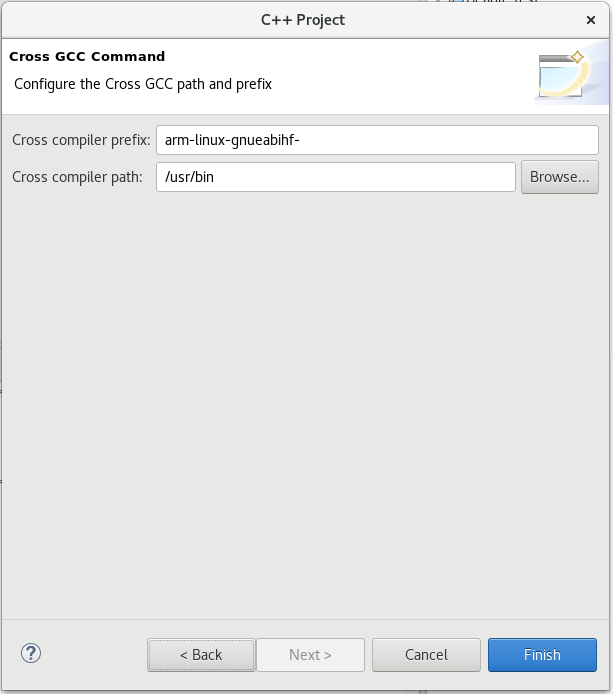
- Eclipse is now setup to cross compile for the BBB. You build project by Project -> Build All and run by Run -> Run. The executable contains ARM machine code and will run only if QEMU is installed.
- Install RSE on eclipse
Help -> Install New Software- Select work with:
All Available Sites - Search for remote system
- Select Remote System Explorer User Actions and step through install and restart eclipse.
- Open a remote system explorer tab:
Window>show_view> OtherSelect Remote and RSE.
- The tab should be open within eclipse
- Repeat but install the other available Remote System Explorer install.
- Set up a new connection with the bellow settings.
- Select Linux
- Host name: 192.168.7.2 and Connection name: BBB *Files: ssh.files
- Processes: processes.shell.linux
- Shells: ssh.shells
- Make user to
rootand add the default password totemppwd - You should now be able to opent the BBB file system.
- Copy and paste a file from host to the BBB directory
- Copy the compiled files binaries from the project tab
- Paste it directly into the BBB home directory
- Launch a terminal on the BBB in eclipse by right clicking ssh Shells
- make the file executable:
chmod a+x _nameofile_to set executable flag our application