User Interface Mock ups and Storyboard
- Figma
Related screens from the storyboard in the Figma file.
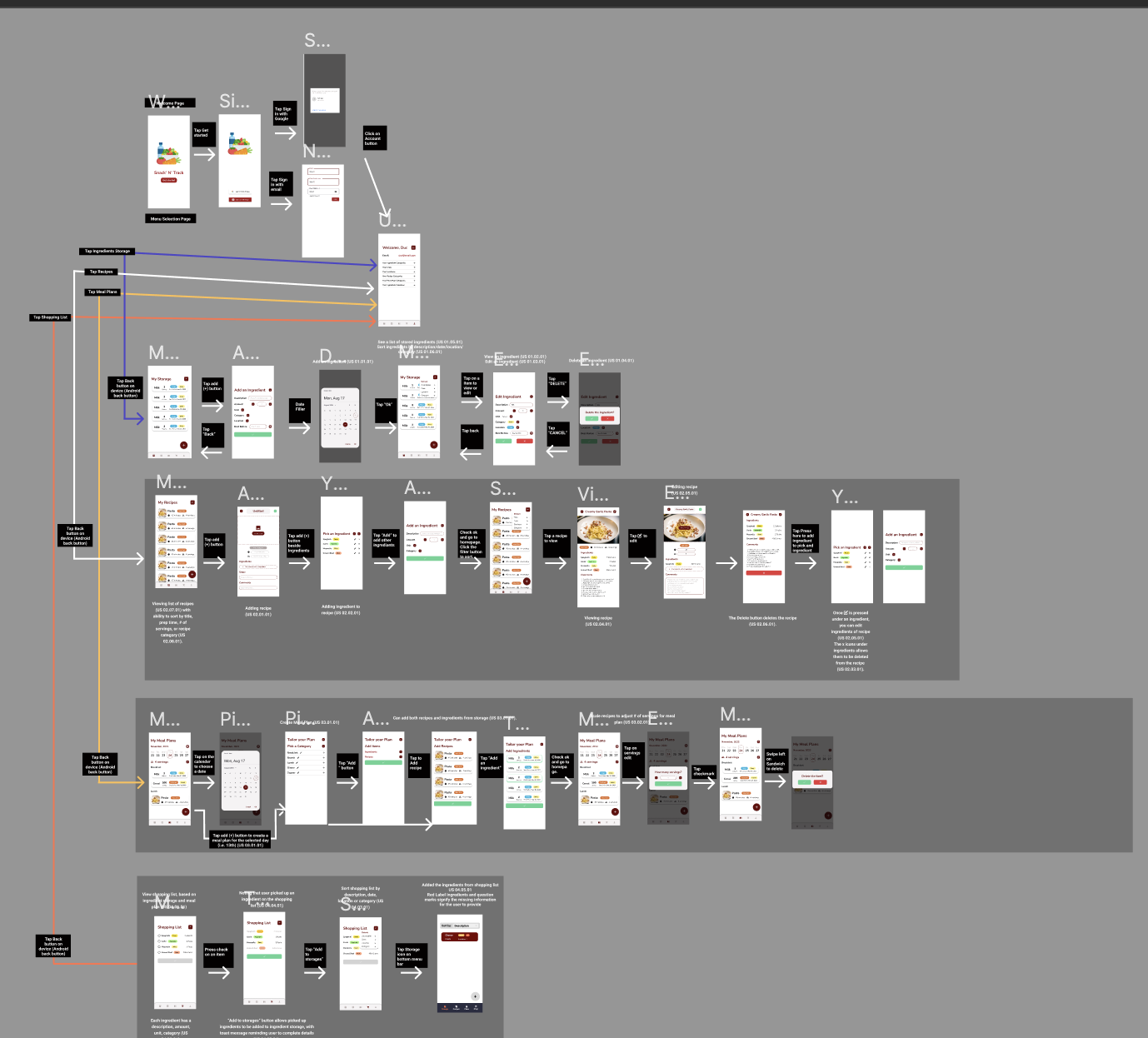
Like the storyboard, you can click on each image to zoom in and see the flow of the app, how interactions with the app would work, and what user stories are fulfilled. At the end of each section, we detail what users can allowed to input/select where user inputs are given.
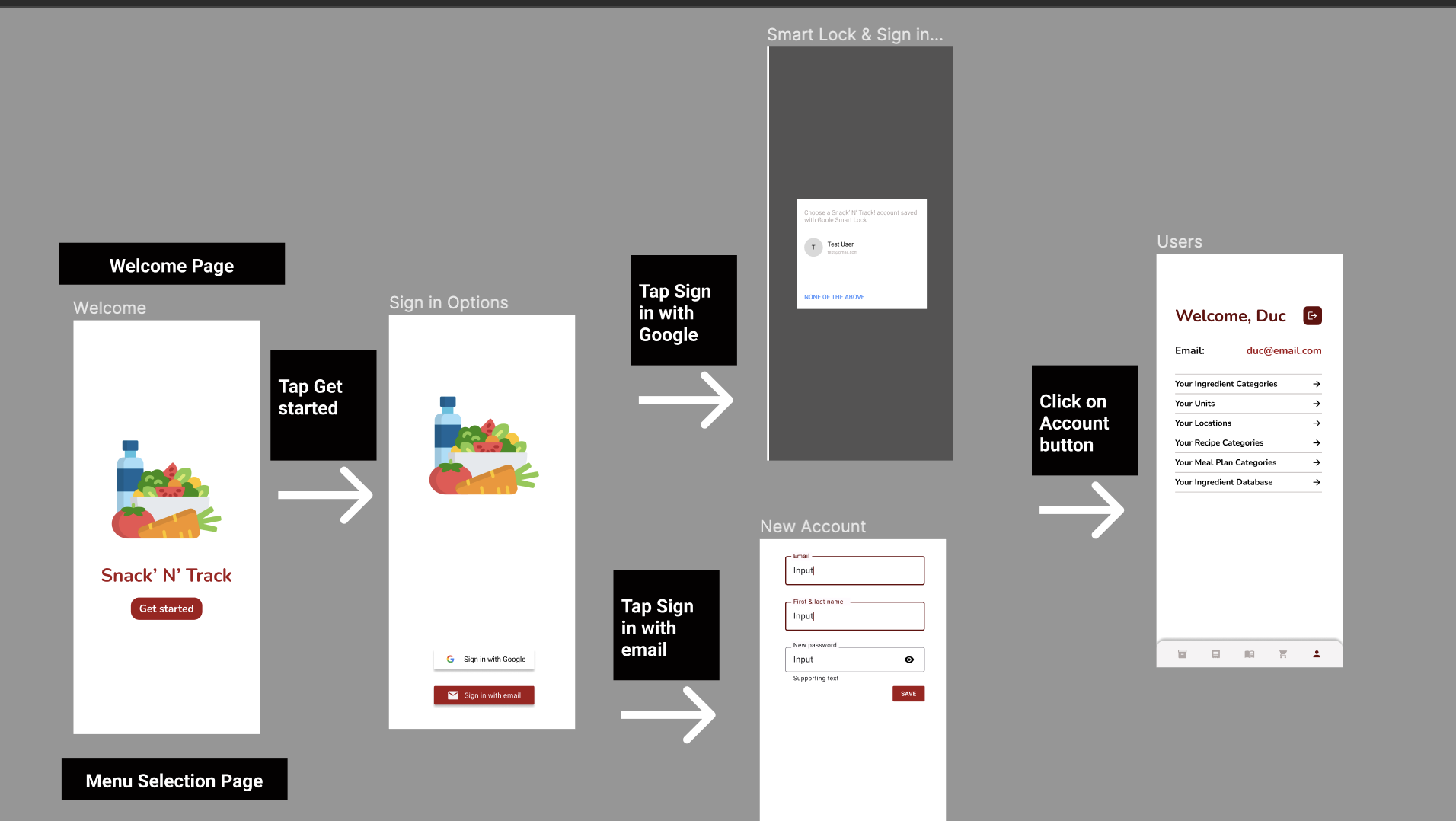 The user can click on the one of the five options in the navigation bar to go the to respective section.
 Add Ingredient Options:

Viewing Ingredients user selection requirements
- Sort by: Dropdown menu (Description, Best Before, Location, Category)
Adding/Editing Ingredient user input requirements
- Description: String
- Amount: only accepts integers
- Unit: menu (packs, g, kg, mL, L, other (user can add new units, will be prompted))
- Category: menu (Seasonal, Produce, Dairy/Eggs, Meat, Seafood, Snacks, Drinks, Frozen, Natural Foods, Deli, Bakery, Prepared Food, other (user can add new categories, will be prompted))
- Location: menu (Pantry, Fridge, Freezer, other (user can add new locations, will be prompted))
- Best Before Date: only accepts date in yyyy-mm-dd format
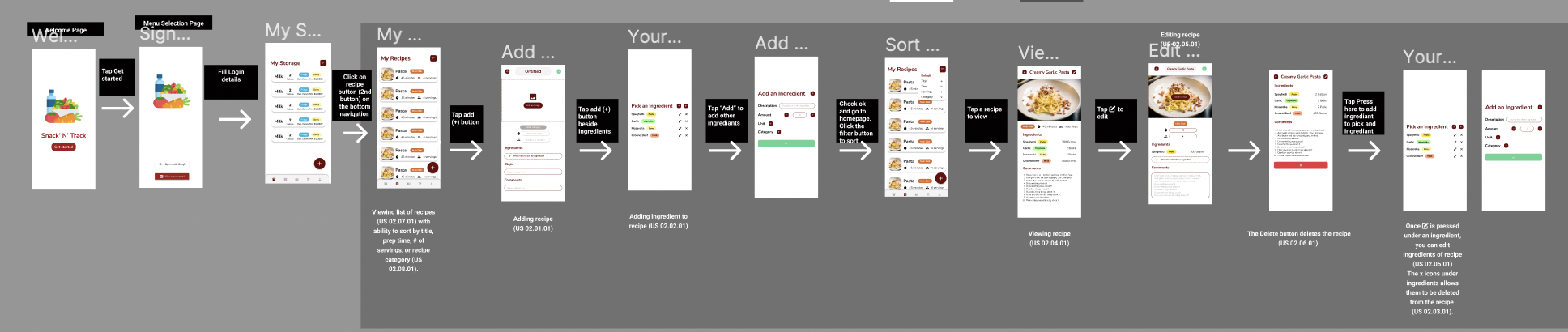
Add/Edit Options:
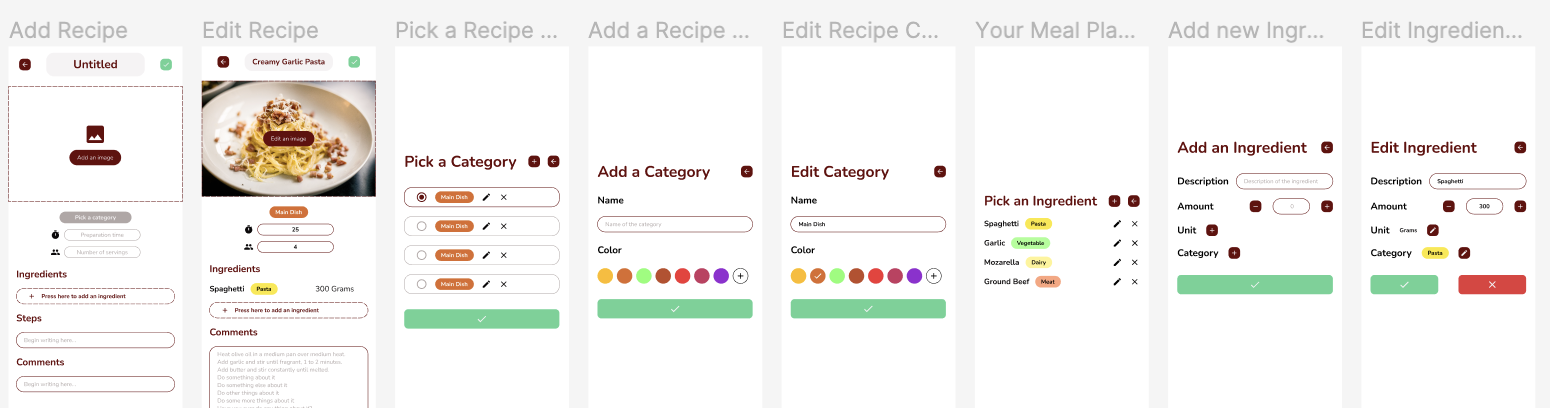
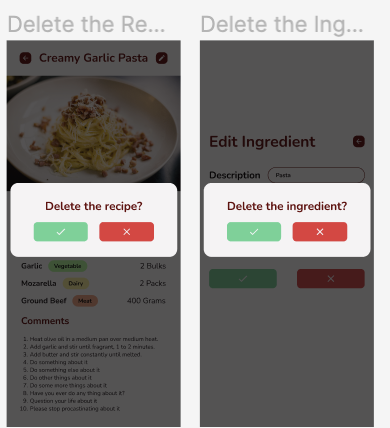
Delete Options:
Viewing Recipes user selection requirements
- Sort by: Dropdown menu (Title, Preparation Time, Number of Servings, Category)
Adding/Editing Recipe input requirements
- Title: String
- Amount: only accepts integers
- Category: menu (Breakfast, Lunch, Dinner, other (user can add new categories, will be prompted))
- Number of servings (person icon): only accepts integers, with -/+ buttons decrementing/incrementing by 1
- Preparation Time (clock icon): only accepts integers, with -/+ buttons decrementing/incrementing by 5
- Comments: String

Adding/Editing Meal Plan input requirements
- Meal: String
- Number of servings (person icon): only accepts integers
- Users can add existing recipes or individual ingredients from their storage to the meal plan (both a recipe and ingredient was added in the mock-up).
Viewing Shopping List user selection requirements
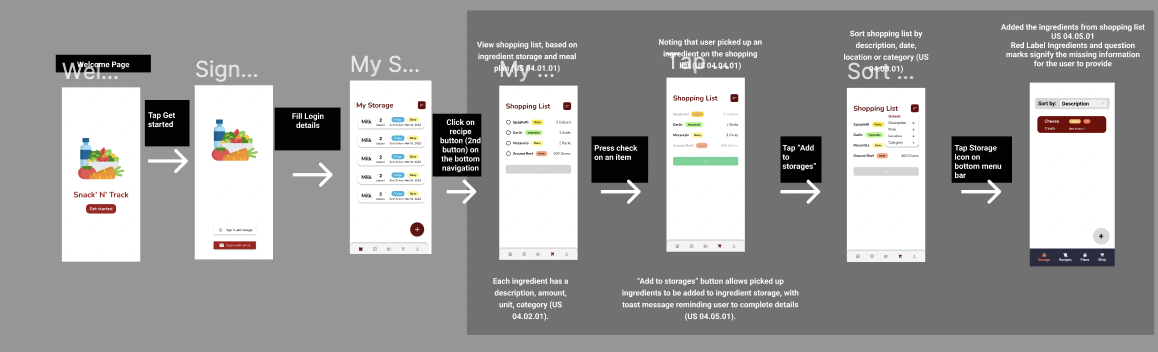
- Sort by: Dropdown menu (Description, Category)
- Users do not add items/ingredients directly to shopping list. Items appear on the shopping list based on the user’s meal plans and storage (i.e., items on list are items that the user needs to buy to fulfill their meal plans).
- “Add to storages” button is usable when user checks items off their shopping list.
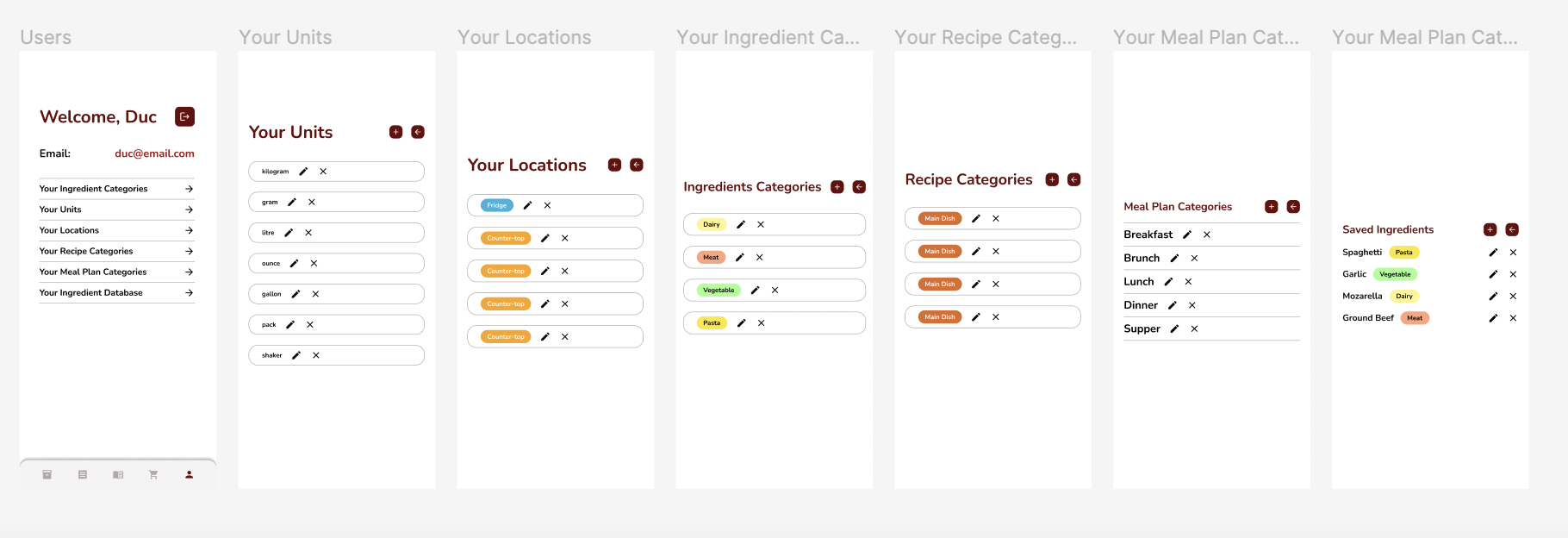 The last option in the bottom navigation bar goes to the current user account page. It contains all the custom-added values of the application.