01. Getting started
To get started, download the library to your computer: navigate to the library main page on GitHub, press the green Code button and Download ZIP. Extract the contents of the zip file somewhere in your computer. Now you can run any of the example files.
You also need a tool to inspect UIAutomation elements. This you can most easily do with UIAViewer, which opens when you run UIA.ahk on its own. But to inspect more properties and test out patterns, one of the more powerful inspect tools is Accessibility Insights.
Elements are the basic building blocks of UIAutomation. Everything displayed on your screen is divided into elements:
- The "biggest" element is the root element - the desktop itself. It contains everything displayed on your screen in a big tree of elements, and there is no bigger element than it (it doesn't have any parents in the UIA tree). If you have multiple desktops, then only the currently displayed one is accessible.
- The direct children of the desktop element are the windows and taskbar: for example if you open Notepad, then it will be a Window type element as a child of the Root element.
- Every window has a tree of elements that make up the contents of the window. Here we have all the buttons, checkbox, edit elements etc. Small elements might be contained in bigger "container" elements such as groups.
If you run UIAViewer and click the "Start capturing" button, you should see something like this:
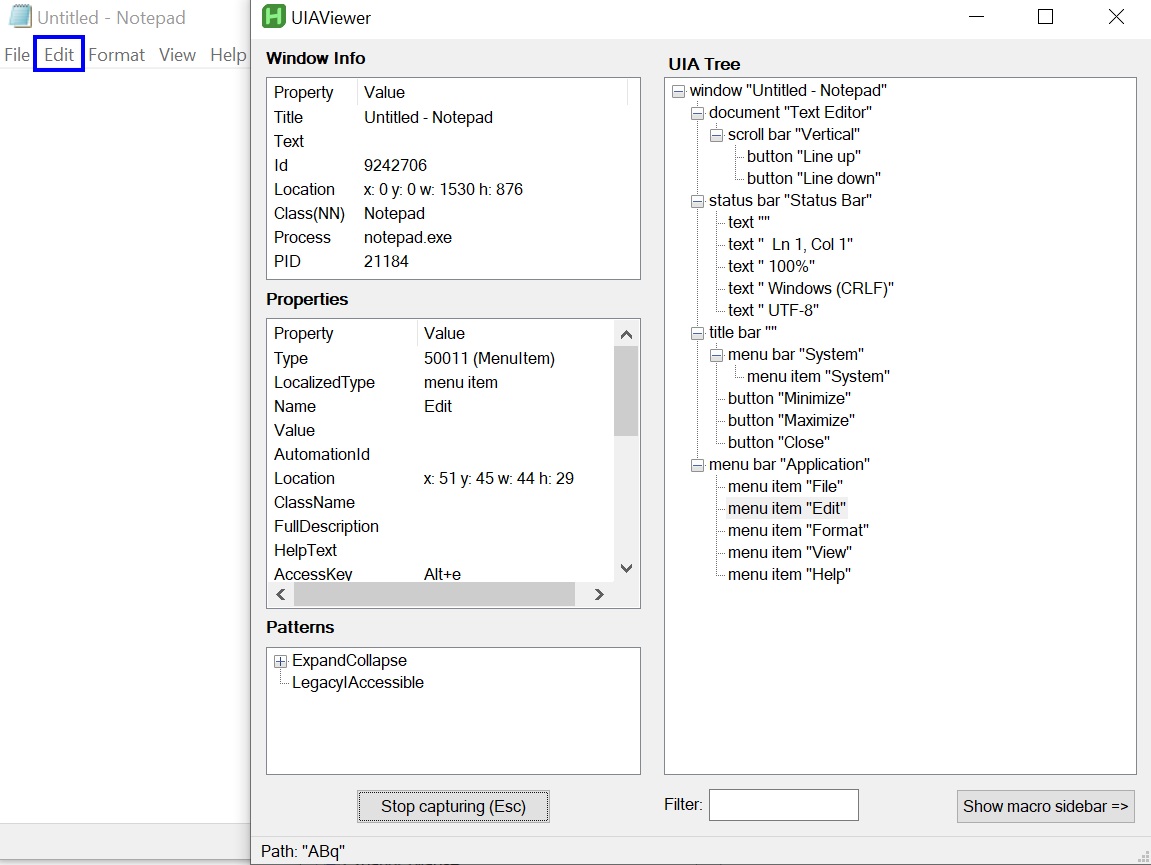
Here we have a Notepad window open, we see that the element under the cursor is highlighted with a blue box ("Edit" menu item), and there is some information displayed about it:
- In the Properties listbox we have some of the properties that describe the element: for example the name of the button is "Edit", the type is "MenuItem" and so on. UIAViewer doesn't display all available properties (to keep things more compact), but you can use Accessibility Insights to display all available properties.
- In the Patterns listbox we see different ways of interacting with the item. Patterns are just different ways of interacting with elements: for example a tab item is usually selectable, so it would have a SelectionItemPattern available, which has an IsSelected property and contains the Select() method to select the item. A button isn't selectable and doesn't have SelectionItemPattern, but it usually has InvokePattern which is used for clicking (Invoke()). In Notepad the Edit MenuItem element has ExpandCollapsePattern, which contains ways of expanding (opening the Edit menu) and collapsing (closing the menu), also getting information about its state like is it collapsed or not. LegacyIAccessiblePattern contains information and methods from MSAA/Acc, which is the predecessor to UIA, and can also be used to get some info about it and interact with it. You can try double-clicking a pattern method to test it out.
- In the TreeView on the right we see part of the UIA tree: the Edit menu items sibling elements, its parents, and if it had any children then those as well. This gives us information about how to get to other elements relative to this one.
- In the bottom there is a UIA "path" displayed. This can be used to "travel" to the element to access its properties and interact with it.
If we hover over an element for a bit, then the whole tree for the Notepad window is shown (you can press Esc to stop capturing at that point). In the previous image it's shown on the right side in UIAViewer: at the top we see the Notepad Window element, then its direct children (document "Text Editor", status bar "Status Bar", title bar, menu bar "Application"), and the children have children of their own. Children along with children of children are called descendants, and if we included the Window element as well then that is called a subtree.
To see a simple example about interacting with the Notepad window, go to the Examples folder in the library main folder and open Example1_Notepad.ahk:
#include ..\Lib\UIA.ahk

Run "notepad.exe"
WinWaitActive "ahk_exe notepad.exe"
; Get the element for the Notepad window
npEl := UIA.ElementFromHandle("ahk_exe notepad.exe")
; Find the first Document or Edit control (in Notepad there is only one). The type of the edit area depends on your Windows version, in newer ones it's usually Document type.
documentEl := npEl.FindElement([{Type:"Document"}, {Type:"Edit"}])
; Highlight the found element
documentEl.Highlight()
; Set the value for the document control.
documentEl.Value := "Lorem ipsum"
Lets go through this example:
-
#include ..\Lib\UIA.ahkincludes the main UIA library file. If you're not sure how #include works, take a look how to use #include here. Usually its easiest to put your script in the same folder where the Lib folder is located at, then you can just use#include <UIA>to include it. -
npEl := UIA.ElementFromHandle("ahk_exe notepad.exe")gets us the starting point element (Notepad window element, which in UIAViewer was the topmost element at the top of the tree) by using the ElementFromHandle method from the UIA class.npElis a new IUIAutomationElement type object (IUIAutomation just tells us that it's part of the UIAutomation interface), which can be used to access all of this elements properties (Name, Type etc), get access to Patterns to interact with it, and more. To learn more about elements, take a look at the "Element class" section of this Wiki. -
documentEl := npEl.FindElement([{Type:"Document"}, {Type:"Edit"}])Here we look for the first element in the Notepad window tree that matches either the type of "Document" or "Edit". In UIAViewer we see that there is adocument "Text Editor"just below the window element, and that is the element we will get. And exactly like the Notepad window element, this is also an IUIAutomationElement object. -
documentEl.Value := "Lorem ipsum"sets the Value property of the element. Most properties cannot be changed (for example Name and Type), but Value is changeable.
Alternatively we could use the UIA path as well to get documentEl. If we inspect the element with UIAViewer, then the path displayed is {T:30,CN:"Edit"}. To use it, we can either use the array notation documentEl := npEl[{T:30,CN:"Edit"}] or use ElementFromPath documentEl := npEl.ElementFromPath({T:30,CN:"Edit"}). This method is less reliable, because the UIAutomation tree can change, and element types can change between different Windows versions. For example, in Windows 11 the document element has the path {T:30,CN:"RichEditD2DPT"}, which means the ClassName has changed in Windows 10 Edit to Windows 11 RichEditD2DPT. Of course we can correct it by hand to {T:30} which translates to Type Document.
There are multiple types of paths available to travel to elements, and you can toggle between them by right-clicking on the statusbar:
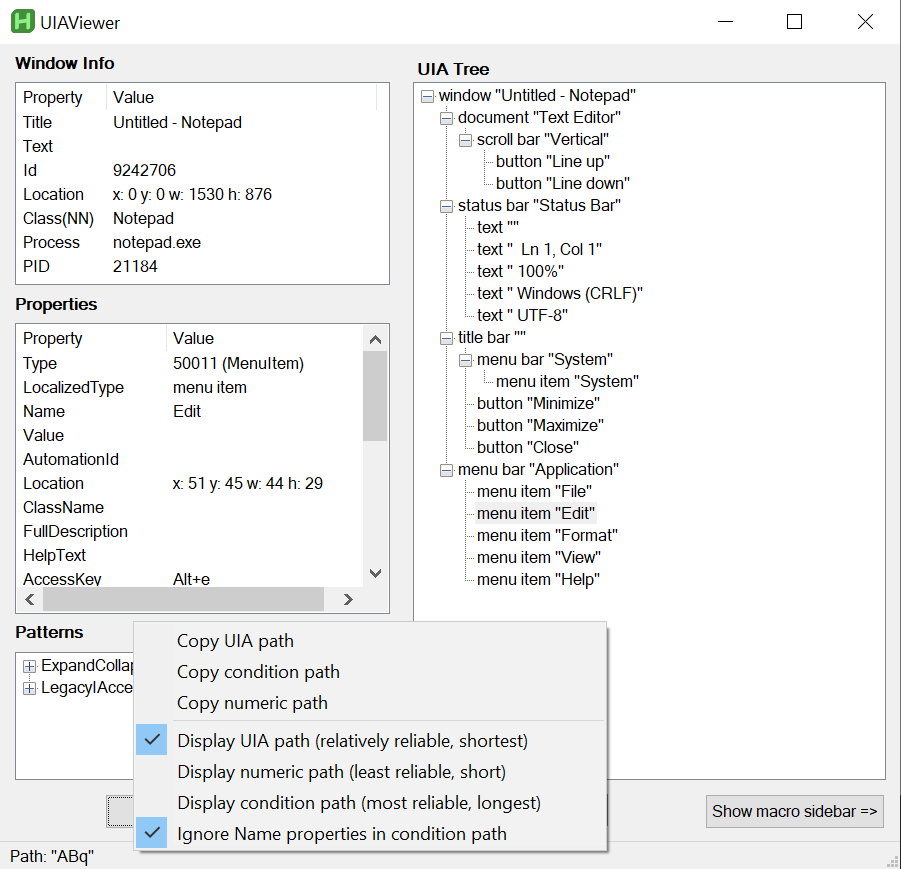
- UIA path: this is path is just a compact form of traveling down the tree using element types and indexes. In the case of "ABq", "A" decodes to Type MenuBar, "B" to Type MenuItem, and q to index 2. This means that we travel starting from the Window element to the first MenuBar element and then to its second MenuItem child:
NotepadElement["ABq"].Name == "Edit". Although short and usually reliable, this method is prone to breaking if the user interface changes too much. For example, this kind of path nearly never works in Microsoft Edge, because depending on whether the cursor is in the webpage or the URL bar, the first element position changes. - Condition path: this is a less compact path which uses shortened conditions to travel down the tree. While mostly the same as the UIA path, this also uses ClassName, AutomationId, and optionally Name properties as well. For the same Edit MenuItem element the path looks like this:
{T:10}, {T:11, i:2}. Here "T" stands for "Type", "i" for "index", and 10 is the Type value for MenuBar.NotepadElement["ABq"] == NotepadElement[{T:10}, {T:11, i:2}] - Numeric path: this is the least reliable path (most prone to breaking), which only uses indexes to travel down the tree. For the Edit MenuItem this would be
4,2, which means that Notepad elements fourth childs second child is selected:NotepadElement[4,2].Name == "Edit".