Dialog XML Viewer
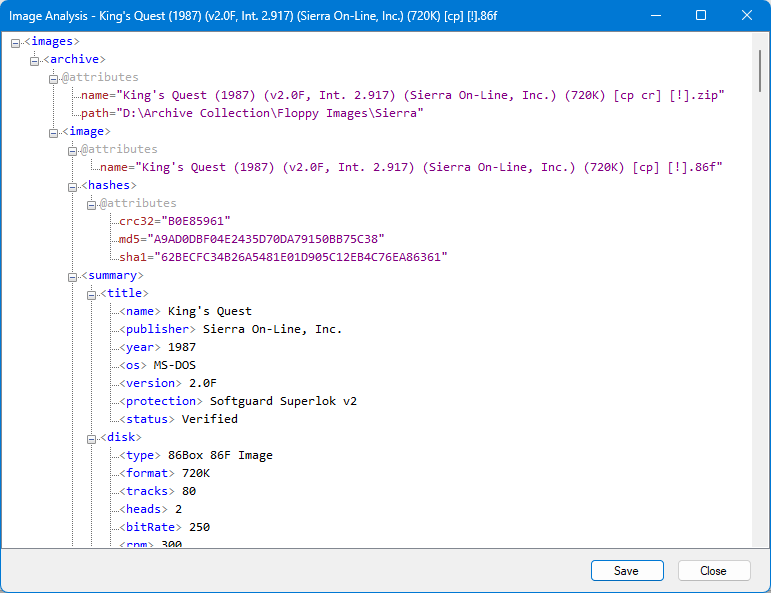
The XML Viewer dialog displays XML content as an expandable tree.
It is used primarily by the built-in reporting features to present structured
image analysis data in a readable form.
The XML Viewer is opened by features that generate XML output:
- Menu: Reports -> Image Analysis (XML)
Displays a detailed analysis of the active disk image. - Menu: Reports -> Batch Image Analysis (XML)
Displays a combined analysis covering all currently loaded images.
The dialog is not opened directly from the menu; it is always shown as the result of another command.
The XML Viewer renders the XML document as a tree:
- Element names are shown in blue with the tag notation
<name>. - Attribute groups appear under a gray @attributes node and individual
attributes are shown in the form
name="value"with the name in brown and value in purple. - Simple leaf elements (elements with a single short text value) are shown
inline next to the tag, for example
<Label> MyDisk. - XML comments are shown in green.
The tree is fully expanded by default so the whole document can be browsed by scrolling.
The viewer is read-only; the underlying data cannot be edited from this dialog.
Saves the current XML content to a file.
- The default filename is suggested based on the source of the report (for example, the active image filename for a single-image analysis).
- Supported filters are plain text (
.txt) and all files. - The saved file contains the full XML document as produced by the report.
Save is hidden when the dialog was opened in read-only mode (that is, when the caller did not request save functionality).
Closes the dialog without saving.
The Escape key also closes the dialog.
- The XML Viewer only displays data; no changes can be made to the active image from this dialog.
- The structure of the XML depends on which report produced it; see Menu Bar for the available report commands.