


For my personal portfolio site I coded my site using a theme called Blowfish. It is designed to be a powerful, lightweight theme for the static site generator called Hugo. It's built using Tailwind CSS with a clean and minimalist design that prioritizes to your content.

To see Blowfish at work and to get a better understanding of it CLICK HERE. To give love and support to the creator of Blowfish or to check out his repo CLICK HERE


- Fully responsive layout built with Tailwind CSS 3.0
- Multiple color schemes (or fully customize your own)
- Dark mode (forced on/off or auto-switching with user toggle)
- Highly customizable configuration
- Firebase integration to support dynamic data
- Views count & like mechanism
- Related articles
- Multiple homepage layouts
- Multiple authors
- Series of articles
- Zen mode for article reading
- Flexible with any content types, taxonomies and menus
- Header and footer menus
- Nested menus & sub-navigation menu
- Multilingual content support including support for RTL languages
- Ability to link to posts on third-party websites
- Support for several shortcodes like Gallery, Timeline, GitHub cards, and Carousels
- Buymeacoffee integration
- Client-side site search powered by Fuse.js
- Diagrams and visualizations using Mermaid
- Charts using Chart.js
- TypeIt integration
- Youtube embeds with performance improvements
- Mathematical notation using KaTeX
- SVG icons from FontAwesome 6
- Automatic image resizing using Hugo Pipes
- Heading anchors, Tables of Contents, Code copy, Buttons, Badges and more
- HTML and Emoji support in articles 🎉
- SEO friendly with links for sharing to social media
- Fathom Analytics and Google Analytics support
- RSS feeds, Favicons and comments support
- Advanced customization using simple Tailwind color definitions and styles
- Optimized for performance and accessibility with perfect Lighthouse scores
- Fully documented with regular updates
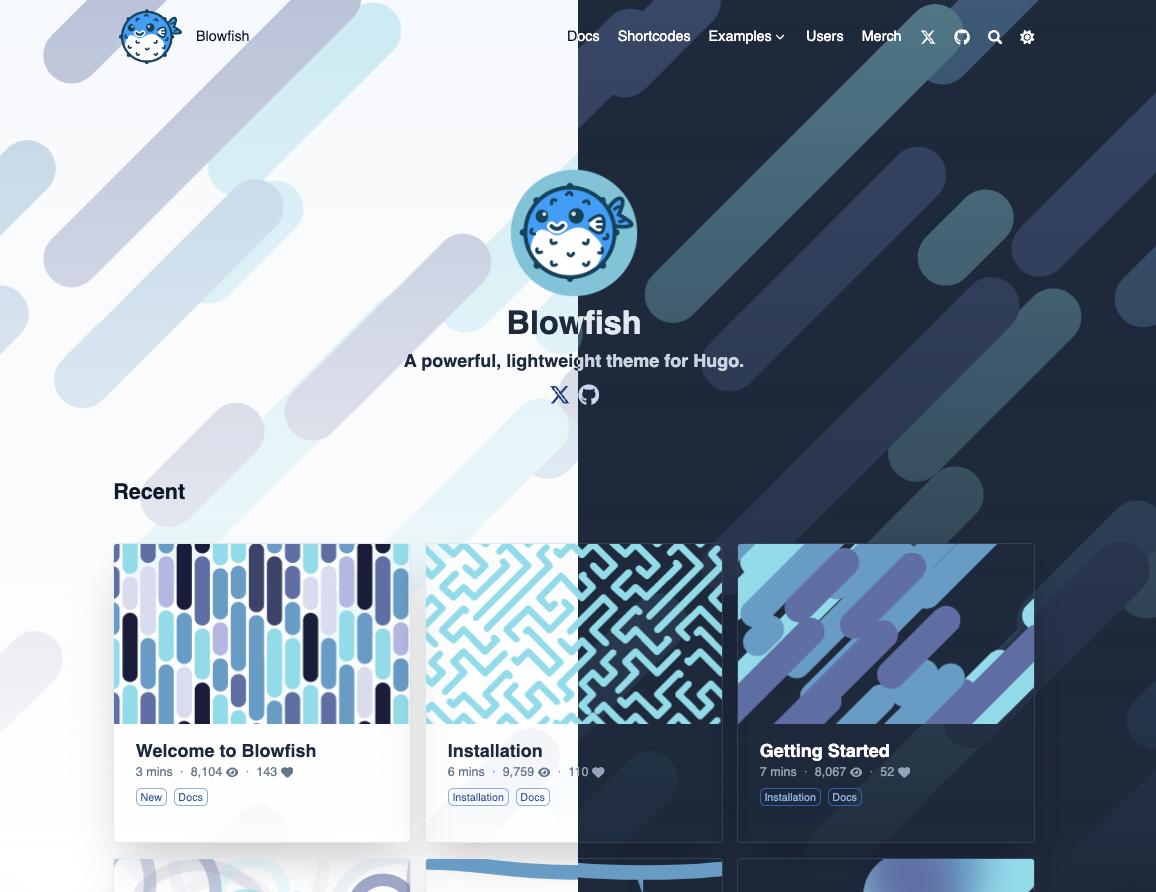
Blowfish has extensive documentation that covers all aspects of the theme. Be sure to read the docs to learn more about how to use the theme and its features.
Blowfish supports several installation methods - as a git submodule, a Hugo Module, or as a completely manual install.
Detailed instructions for each method can be found in the Installation docs. You should consult the documentation for the simplest setup experience. Below is a quick start guide using submodules if you are using git, or Hugo modules if you're already confident installing Hugo themes.
Note: Ensure you have Node.js, Git, Go and Hugo installed, and that you have created a new Hugo project before proceeding.
We just launched a new CLI tool to help you get started with Blowfish. It will create a new Hugo project, install the theme and set up the theme configuration files for you. It's still in beta so please report any issues you find.
Install the CLI tool globally using npm (or other package manager):
npm i -g blowfish-toolsThen run the command blowfish-tools to start an interactive run which will guide you through creation and configuration use-cases.
blowfish-toolsYou can also run the command blowfish-tools new to create a new Hugo project and install the theme in one go. Check the CLI help for more information.
blowfish-tools new mynewsiteNote: Ensure you have Git, Go, and Hugo installed, and that you have created a new Hugo project before proceeding.
-
From your project directory, initialise git:
git init
-
Configure Blowfish as a git submodule:
git submodule add -b main https://github.com/nunocoracao/blowfish.git themes/blowfish
-
In the root folder of your website, delete the
config.tomlfile that was generated by Hugo. Copy the*.tomlconfig files from the theme into yourconfig/_default/folder.You will find these theme config files in the Hugo cache directory, or download a copy from GitHub.
-
Follow the Getting Started instructions to configure your website.
Note: Ensure you have Go and Hugo installed, and that you have created a new Hugo project before proceeding.
-
From your project directory, initialise Hugo Modules:
hugo mod init github.com/<username>/<repo-name>
-
Create
config/_default/module.tomland add the following:[[imports]] path = "github.com/nunocoracao/blowfish/v2"
-
Start your server using
hugo serverand the theme will be downloaded automatically. -
In the root folder of your website, delete the
config.tomlfile that was generated by Hugo. Copy the*.tomlconfig files from the theme into yourconfig/_default/folder.Note: Do not overwrite the
module.tomlfile you created above!You will find these theme config files in the Hugo cache directory, or download a copy from GitHub.
-
Follow the Getting Started instructions to configure your website.
As new releases are posted, you can update the theme using Hugo. Simply run hugo mod get -u from your project directory and the theme will automatically update to the latest release.
Detailed update instructions are available in the docs.