



Claude Code Statusline Pro - 为Claude Code量身定制的智能状态栏系统。
- 🎯 三大主题系统: Classic、Powerline、Capsule 主题,自适应终端能力
- 🛠️ 灵活的配置系统: 支持TOML配置文件和命令行参数覆盖
- 📊 精准Token计算: 与Claude官方API完全一致的token统计,支持渐变可视化进度条
- 🧠 智能状态识别: 基于tokens数量精准识别Thinking vs Ready状态
- 🚀 预设系统: 通过字母组合快速配置组件排布 (
PMBTURS,MT,BT) - 🌈 跨平台兼容: Windows、macOS、Linux智能适配,支持各种终端
- 🧩 多行小组件系统: 支持网格布局、静态/ API 数据源、检测与过滤器,自由扩展状态栏
- ⚡ 高性能优化: 缓存机制,300ms更新间隔,符合Claude Code官方建议
- 🌐 双语支持: 中英双语配置界面和错误提示
- 🦀 Rust 引擎: 提供原生 Rust 内核,更快更稳
- 原生
git2仓库分析:直接获取分支、状态、stash 等信息,避免频繁 Shell 调用,在大型仓库中依然流畅 - 多层缓存体系:组件级内存缓存结合会话持久化存储,减少重复解析配置与历史数据的 IO
- Tokio 异步运行时:多线程调度渲染与文件操作,维持官方推荐的 300ms 更新节奏并提升稳定性
- 增量 Transcript 解析:按偏移量增量读取
.jsonl,并通过原子写入持久化快照,避免大型日志反复全量扫描 - 配置与扩展缓存:合并配置结果可复用并附带差异报告,多行组件缓存上次 Widget 内容以降低 I/O 和网络抖动
在开始使用之前,请确保您的系统满足以下要求:
- Claude Code: 版本 ≥ 1.0.71
- Node.js: 版本 ≥ 16.0.0 (下载安装)
- npm: 通常随Node.js自动安装
# 检查Claude Code版本
claude --version

# 检查Node.js版本
node --version

# 检查npm版本
npm --version只需要在Claude Code的配置文件中添加一行配置,无需预先安装:
在项目根目录或 $USER 目录创建 .claude/settings.json:
{
  "statusLine": {
    "type": "command",
    "command": "npx ccsp@latest"
  }
}
💡 兼容说明:旧命令
npx claude-code-statusline-pro@latest仍可继续使用,并会提示迁移。建议将现有配置更新为npx ccsp@latest。
保存文件后,重新打开Claude Code即可看到专业版状态栏!
打开Claude Code,你应该看到类似这样的状态栏:
📁 my-project | 🤖 S4 | 🌿 main | 📊 [████████████░░░] 80.1%(160k/200k) | $21.07 | ✅ Ready
通过简单的字母组合快速定制状态栏显示内容:
- P = Project (项目名称)
- M = Model (模型信息)
- B = Branch (Git分支)
- T = Tokens (Token使用情况)
- U = Usage (使用量统计)
- R = Rate Limit (Claude.ai 订阅计划 5h / 7d 限额)
- S = Status (状态信息)
注:这些命令全部是写在settings.json中的,并不是在终端直接执行使用(直接执行会打印出预览结果)
# 显示所有组件(推荐)
npx ccsp@latest --preset PMBTURS --theme powerline

# 只显示模型、Token和使用量
npx ccsp@latest --preset MTU --theme classic

# 只显示分支和Token信息
npx ccsp@latest --preset BT --theme capsule多行系统可以把状态栏扩展为网格布局,嵌入多个可独立刷新的小组件。
- 网格布局:使用
row(从1开始)和col(从0开始)控制每个小组件的位置,支持跨行/列排布。 - 小组件类型:内置
static(静态文本)与api(HTTP 请求)两种类型,API 小组件支持模板渲染、环境变量替换。 - 自动检测:通过
detection段读取环境变量,可配置equals/contains/pattern触发条件,也可以配合force手动开启或关闭。 - 结果过滤:
filter支持 JSONPath +equals/contains/pattern匹配,只在命中关键字时刷新;可用于最近请求等场景。 - 模板示例:项目内提供
configs/components/usage.template.toml与configs/components/rate_limit.template.toml,复制到~/.claude/statusline-pro/components/后按需改写。
在 config.toml 中开启多行模式并指定要加载的组件文件:
[multiline]
enabled = true
执行 npx ccsp@latest config init -w 可以一次性生成主配置并复制所有小组件模板。
Classic主题支持三种图标模式,默认会根据终端能力自动选择:

需要安装Nerd Font字体,并在对应的终端中选择使用字体,推荐使用 Hack Nerd Font

适合支持Emoji但没有Nerd Font的终端

最大兼容性,适合所有终端环境

箭头无缝连接设计,需要Nerd Font支持,提供最佳视觉体验。

胶囊形状包装,现代化UI设计,适合追求简洁美观的用户。
如果你的终端本就支持某种图标(例如Nerd Font),但没有自动启用,则可强制指定启用该图标能力
# 强制启用Nerd Font图标(需要安装字体,否则会显示乱码)
npx ccsp@latest --force-nerd-font

# 强制启用Emoji图标(需要终端确实支持Emoji,如MacOS,否则会显示乱码)
npx ccsp@latest --force-emoji

# 强制启用纯文本模式
npx ccsp@latest --force-text状态栏的token计算与Claude官方API保持完全一致,确保显示数据的准确性:
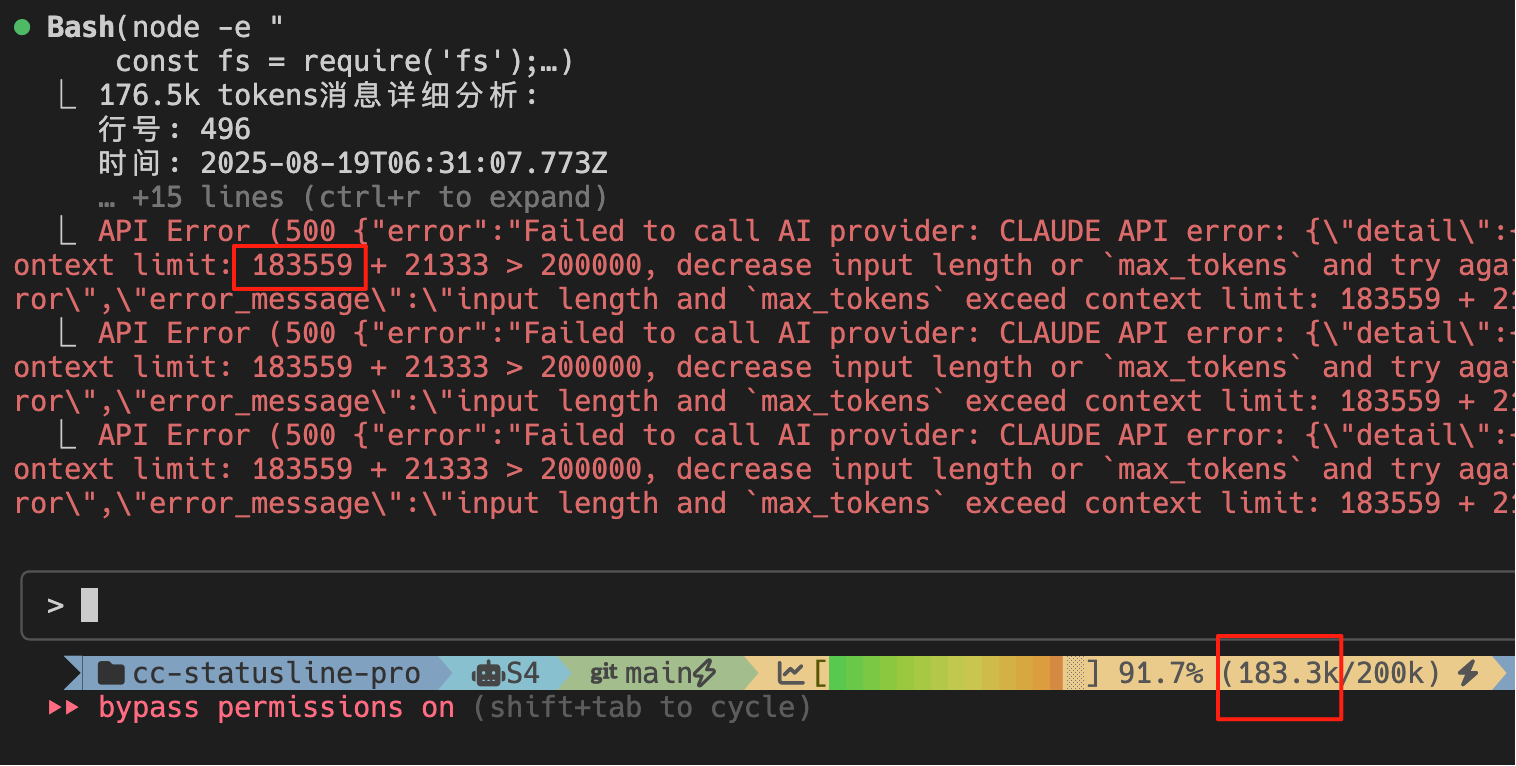
如图所示:
- 状态栏显示:
183.3k/200k (91.7%) - Claude API报错:
183559 + 21333 > 200000 - 计算结果:
183559 ≈ 183.3k✅ 完全一致
contextUsedTokens = usage.input_tokens +
                   usage.cache_creation_input_tokens +
                   usage.cache_read_input_tokens +
                   usage.output_tokens;
这确保了状态栏显示的token使用量与Claude官方统计完全一致。
状态栏提供两种成本计算模式,可在 config.toml 中配置:
- 计算范围: 从您打开 Claude Code 开始,到使用
/clear命令或关闭应用为止 - 计算逻辑: 基于当前会话的所有 token 消耗
- 适用场景: 单次工作会话的成本控制
- 重置方式: 使用
/clear命令或重启 Claude Code
- 计算范围: 追踪完整对话链的累计消耗
- 智能追踪: 即使关闭并重新打开 Claude Code,仍能追踪同一项目的历史消耗
- Session 无关: 自动在本地缓存以记录每次中断/恢复/压缩的 token 变化,保持连续性追踪
- 适用场景: 长对话(可能含多次压缩)的完整成本分析
在 config.toml 中设置:
[components.usage]
mode = "conversation" # 或 "session"usage 组件默认使用 currency = "auto"。自动模式会先应用你配置的 endpoint/model 规则,再匹配 model_providers,随后读取 Claude Code 传入的 cost.currency,最后回退到内置规则或 USD。DeepSeek、MiniMax、Kimi、GLM、百炼、火山方舟、MiMo 等 provider 已有默认 profile;其中中国站/国际站会分开匹配币种和价格。用户可以在 model_providers 中集中覆盖 endpoint、模型窗口、币种和价格。
注意:conversation 模式读取的是历史聚合的 total_cost_usd 存储值。为避免只换符号、不换金额,currency = "auto" 在该模式下会显示 USD;如果你确认自己的聚合成本已经是其他币种,可用 currency = "CNY" 等固定值强制显示。
[components.usage]
currency = "auto" # auto | USD | CNY | EUR | GBP | JPY ...

[model_providers.deepseek]
endpoints = ["api.deepseek.com"]
models = ["deepseek-*", "deepseek-chat", "deepseek-reasoner"]
currency = "CNY"

[model_providers.deepseek.context_windows]
"deepseek-chat" = 1_000_000
"deepseek-r1*" = 65_536

[model_providers.deepseek.pricing.deepseek-chat]
unit_tokens = 1_000_000
input = 1.0
output = 2.0
cache_read = 0.02

[components.usage.currency_endpoint_rules]
"api.example.cn" = "CNY"
"api.example.com" = "USD"

[components.usage.currency_model_rules]
"my-cny-model" = "CNY"默认情况下,状态栏直接显示 Claude Code 传入的 cost.total_cost_usd。如果命中 model_providers.<name>.pricing,并且输入里包含 input/output/cache token 明细,则会按该 profile 的价格本地重算;缺少 token 明细时自动回退到上游金额。若 endpoint 已匹配到某个 provider,只会使用该 endpoint 所属 provider 的价格,避免中国站套用国际站价格。
注意: 状态栏的成本计算与 /cost 命令采用不同逻辑和时间范围,确保各自场景的准确性。
状态栏采用两级配置系统,支持灵活的配置管理:
项目级配置 (优先级: 高)
- 路径:
~/.claude/projects/{project-hash}/statusline-pro/config.toml - 适用: 特定项目的个性化配置
- 初始化:
npx ccsp@latest config init - 初始化并复制组件模板:
npx ccsp@latest config init -w
用户级配置 (优先级: 低)
- 路径:
~/.claude/statusline-pro/config.toml - 适用: 全局默认配置,适用于所有项目
- 初始化:
npx ccsp@latest config init -g - 初始化并复制组件模板:
npx ccsp@latest config init -w -g
运行初始化命令时,系统会自动检测您的终端能力:
# 初始化项目级配置(推荐)
npx ccsp@latest config init

# 初始化项目级配置并复制组件模板
npx ccsp@latest config init -w

# 初始化全局配置
npx ccsp@latest config init -g

# 强制重新初始化(覆盖现有配置)
npx ccsp@latest config init --force
提示:
-w等同于--with-components,会把组件多行模板一并复制到配置目录,方便直接在本地调整。
智能检测功能:
- 🎨 Nerd Font 检测: 自动识别终端是否支持 Nerd Font 图标
- 😊 Emoji 支持检测: 检测终端的 Emoji 渲染能力
- 🌈 颜色支持检测: 识别终端的颜色显示能力
- 🎯 主题自动选择: 根据终端能力自动选择最佳主题
系统初始化后会生成完整的 config.toml 配置文件:
# 默认预设和主题
preset = "PMBTURS"
theme = "powerline"

# 主题特性配置
[themes.powerline]
enable_gradient = true
ignore_separator = true
fine_progress = true

# 组件顺序配置
[components]
order = ["project", "model", "branch", "tokens", "usage", "rate_limit", "status"]

# Token组件详细配置
[components.tokens]
show_gradient = true         # 启用彩色渐变进度条
show_progress_bar = true     # 显示进度条
show_percentage = true       # 显示百分比
progress_width = 15          # 进度条宽度

# 模型上下文窗口覆盖(内置已包含常见国产/第三方模型)
# 精确 key 优先于通配前缀;命中模型专属窗口时会覆盖 Claude Code stdin 的通用 200K。
[components.tokens.context_windows]
"deepseek-v4-*" = 1_000_000
"qwen-long*" = 10_000_000
"my-provider/my-model" = 500_000

# Token阈值配置
[components.tokens.thresholds]
warning = 60    # 60%显示黄色警告
danger = 85     # 85%显示红色危险
backup = 85     # 后备区域开始
critical = 95   # 95%显示🔥临界

# 终端兼容配置
[terminal]
force_nerd_font = false     # 强制启用Nerd Font
force_emoji = false         # 强制启用Emoji
force_text = false # 强制文本模式智能检测并自动适配不同终端环境:
- Windows Terminal ✅ 完全支持所有特性
- VS Code Terminal ✅ 完全支持所有特性
- iTerm2 (macOS) ✅ 完全支持所有特性
- Git Bash ✅ 完全支持所有特性
- PowerShell ✅ 完全支持所有特性
- CMD
⚠️ 自动回退到安全文本模式
# 错误示例:status line command failed: npx ccsp@latest
# 解决方案:升级Claude Code到最新版本
npm install -g @anthropic-ai/claude-code@latest# 错误示例:/bin/sh: npx: command not found
# 解决方案:安装或更新Node.js环境
# 访问官网下载最新版本:https://nodejs.org/
# 或使用包管理器安装:
# macOS (使用Homebrew)
brew install node
# Ubuntu/Debian
sudo apt update && sudo apt install nodejs npm
# Windows
# 请访问 https://nodejs.org/ 下载安装包# 检查Claude Code版本
claude --version
# 如果版本低于1.0.71,请更新
npm install -g @anthropic-ai/claude-code@latest
# 更新后重启终端并重新打开Claude Code自 v3.0.2 起,Linux x64/ARM64 平台包改为 musl 静态链接构建,不再依赖系统自带的 OpenSSL;请执行以下步骤:
- 确认使用最新版本:
npx ccsp@latest --version - 若仍提示旧二进制,可清理 npm 缓存后重试:
npm cache clean --force
npx ccsp@latest --version
- 仍需手动安装依赖的老版本用户,可按发行说明安装
libssl3或升级系统,但建议尽快迁移到 3.0.2+。
# 检查终端是否支持Nerd Font,强制使用Emoji模式
npx ccsp@latest --force-emoji# 检查终端颜色支持,可以禁用颜色
npx ccsp@latest --no-colors# 检查Claude Code配置文件是否正确
cat ~/.claude/settings.json# 测试基本功能
echo '{"model":{"id":"claude-sonnet-4"}}' | npx ccsp@latest
# 测试特定预设和主题
echo '{"model":{"id":"claude-sonnet-4"}}' | npx ccsp@latest --preset MT --theme classicClaude Code Professional Status Bar - Smart status bar system specifically designed for Claude Code.
- 🎯 Three Theme System: Classic, Powerline, and Capsule themes with adaptive terminal capabilities
- 🛠️ Flexible Configuration System: Support for TOML configuration files and command-line parameter overrides
- 📊 Precise Token Calculation: Token statistics fully consistent with Claude's official API, supporting gradient visualization progress bar
- 🧠 Smart Status Recognition: Precise identification of Thinking vs Ready status based on token count
- 🚀 Preset System: Quick component configuration through letter combinations (
PMBTURS,MT,BT) - 🌈 Cross-platform Compatibility: Smart adaptation for Windows, macOS, Linux, supporting various terminals
- 🧩 Multiline Widget System: Grid-based widgets with static/API sources, auto-detection, and JSONPath filters
- ⚡ High Performance Optimization: Caching mechanism, 300ms update interval, following Claude Code official recommendations
- 🌐 Bilingual Support: Chinese and English configuration interface with error messages
- 🦀 Rust Engine: Native Rust core for faster, more stable statusline updates
- Native
git2repository analysis: reads branch status, stash counts, and operations without spawning shells, keeping large repos responsive - Layered caching system: in-memory component caches plus persisted session storage to avoid redundant config/history IO
- Tokio-powered async runtime: multi-threaded scheduling separates rendering from file work, maintaining the 300ms refresh cadence with higher stability
- Incremental transcript parsing: seeks to the last processed offset and persists snapshots atomically so large
.jsonllogs no longer stall refreshes - Cached config and widgets: merged configurations are reused with diff reports, while multiline widgets memoize their last render to smooth IO and API calls
Before getting started, please ensure your system meets the following requirements:
- Claude Code: Version ≥ 1.0.71
- Node.js: Version ≥ 16.0.0 (Download)
- npm: Usually installed automatically with Node.js
# Check Claude Code version
claude --version

# Check Node.js version
node --version

# Check npm version
npm --versionSimply add one line to your Claude Code configuration file, no pre-installation required:
Create .claude/settings.json in your project root or home directory:
{
  "statusLine": {
    "type": "command",
    "command": "npx ccsp@latest"
  }
}
💡 Compatibility Note: The legacy command
npx claude-code-statusline-pro@lateststill works and shows a migration hint. Updating existing configs tonpx ccsp@latestkeeps future upgrades smooth.
Save the file and restart Claude Code to see the professional status bar!
Open Claude Code and you should see a status bar like this:
📁 my-project | 🤖 S4 | 🌿 main | 📊 [████████████░░░] 80.1%(160k/200k) | $21.07 | ✅ Ready
Quickly customize status bar content through simple letter combinations:
- P = Project (project name)
- M = Model (model information)
- B = Branch (Git branch)
- T = Tokens (token usage)
- U = Usage (usage statistics)
- R = Rate Limit (Claude.ai subscription 5h / 7d limits)
- S = Status (status information)
Note: These commands are all written in settings.json, not executed directly in the terminal (direct execution will print preview results)
# Show all components (recommended)
npx ccsp@latest --preset PMBTURS --theme powerline

# Show only model, tokens, and usage
npx ccsp@latest --preset MTU --theme classic

# Show only branch and token information
npx ccsp@latest --preset BT --theme capsuleThe multiline engine turns the status bar into a grid of independently refreshing widgets.
- Grid layout: Use
row(1-based) andcol(0-based) to place each widget and build multi-row layouts. - Widget types: Built-in
static(text) andapi(HTTP request) widgets with template rendering and environment variable substitution. - Auto detection:
detectionblocks read environment variables and supportequals/contains/pattern, with optionalforceoverrides. - Result filters:
filtercombines JSONPath withequals/contains/patternso widgets refresh only when keywords match—perfect for last-request panels. - Starter templates: Copy
configs/components/usage.template.tomlandconfigs/components/rate_limit.template.tomlto~/.claude/statusline-pro/components/and customize.
Enable multiline mode in config.toml and point to your widget file:
[multiline]
enabled = true
Run npx ccsp@latest config init -w to generate the main config and copy all widget templates in one step.
Classic theme supports three icon modes, automatically selected based on terminal capabilities by default:
Requires Nerd Font installation and selecting the font in the corresponding terminal, recommend Hack Nerd Font
Suitable for terminals that support Emoji but don't have Nerd Font
Maximum compatibility, suitable for all terminal environments
Seamless arrow connection design, requires Nerd Font support, provides the best visual experience.
Capsule-shaped wrapper, modern UI design, suitable for users pursuing simplicity and beauty.
If your terminal already supports certain icons (e.g., Nerd Font) but doesn't auto-enable, you can force enable that icon capability
# Force enable Nerd Font icons (requires font installation, otherwise will show garbled text)
npx ccsp@latest --force-nerd-font

# Force enable Emoji icons (terminal must actually support Emoji like macOS, otherwise will show garbled text)
npx ccsp@latest --force-emoji

# Force enable plain text mode
npx ccsp@latest --force-textThe status bar's token calculation remains fully consistent with Claude's official API, ensuring accurate data display:
As shown in the image:
- Status bar display:
183.3k/200k (91.7%) - Claude API error:
183559 + 21333 > 200000 - Calculation result:
183559 ≈ 183.3k✅ Completely consistent
contextUsedTokens = usage.input_tokens +
                   usage.cache_creation_input_tokens +
                   usage.cache_read_input_tokens +
                   usage.output_tokens;
This ensures that the token usage displayed in the status bar is completely consistent with Claude's official statistics.
The status bar provides two cost calculation modes, configurable in config.toml:
- Calculation scope: From when you open Claude Code until using
/clearcommand or closing the application - Calculation logic: Based on all token consumption in the current session
- Use case: Cost control for single work sessions
- Reset method: Use
/clearcommand or restart Claude Code
- Scope: Tracks cumulative usage across the entire conversation chain
- Smart Tracking: Continues following the same project’s history even after closing and reopening Claude Code
- Session-Agnostic: Persists local snapshots of token changes for every pause/resume/compression to maintain continuity
- Best For: Long-running conversations (often with multiple compressions) that need full cost analysis
Set in config.toml:
[components.usage]
mode = "conversation" # or "session"The usage component defaults to currency = "auto". Auto mode first applies your custom endpoint/model rules, then matches model_providers, then trusts cost.currency from Claude Code when present, and finally falls back to built-in rules or USD. DeepSeek, MiniMax, Kimi, GLM, Model Studio, Volcengine/BytePlus, and MiMo ship with default provider profiles; CN/global endpoints are matched separately for currency and pricing. Users can override endpoints, context windows, currency, and pricing under model_providers.
Note: conversation mode reads historical total_cost_usd aggregate values from storage. To avoid changing only the symbol without converting the amount, currency = "auto" displays USD in that mode; use a fixed value such as currency = "CNY" only when you know the aggregate costs are already in that currency.
[components.usage]
currency = "auto" # auto | USD | CNY | EUR | GBP | JPY ...

[model_providers.deepseek]
endpoints = ["api.deepseek.com"]
models = ["deepseek-*", "deepseek-chat", "deepseek-reasoner"]
currency = "CNY"

[model_providers.deepseek.context_windows]
"deepseek-chat" = 1_000_000
"deepseek-r1*" = 65_536

[model_providers.deepseek.pricing.deepseek-chat]
unit_tokens = 1_000_000
input = 1.0
output = 2.0
cache_read = 0.02

[components.usage.currency_endpoint_rules]
"api.example.cn" = "CNY"
"api.example.com" = "USD"

[components.usage.currency_model_rules]
"my-cny-model" = "CNY"By default, the statusline displays cost.total_cost_usd from Claude Code. If a matching model_providers.<name>.pricing rule exists and the input includes input/output/cache token details, the usage component recalculates the cost locally from that profile. If token details are missing, it falls back to the upstream amount. When an endpoint matches a provider, pricing is restricted to that endpoint's provider so CN endpoints do not inherit global prices by model name alone.
Note: The status bar's cost calculation uses different logic and time ranges from the /cost command, ensuring accuracy for their respective scenarios.
The status bar uses a two-level configuration system for flexible configuration management:
Project-level Configuration (Priority: High)
- Path:
~/.claude/projects/{project-hash}/statusline-pro/config.toml - Application: Personalized configuration for specific projects
- Initialization:
npx ccsp@latest config init - Initialization with component templates:
npx ccsp@latest config init -w
User-level Configuration (Priority: Low)
- Path:
~/.claude/statusline-pro/config.toml - Application: Global default configuration for all projects
- Initialization:
npx ccsp@latest config init -g - Initialization with component templates:
npx ccsp@latest config init -w -g
When running initialization commands, the system automatically detects your terminal capabilities:
# Initialize project-level configuration (recommended)
npx ccsp@latest config init

# Initialize project-level configuration and copy component templates
npx ccsp@latest config init -w

# Initialize global configuration
npx ccsp@latest config init -g

# Force re-initialization (overwrite existing configuration)
npx ccsp@latest config init --force
Tip:
-wis the short form of--with-components; it copies the bundled multiline widget templates into your config folder so you can customize them locally.
Smart Detection Features:
- 🎨 Nerd Font Detection: Automatically identifies if terminal supports Nerd Font icons
- 😊 Emoji Support Detection: Detects terminal's emoji rendering capability
- 🌈 Color Support Detection: Identifies terminal's color display capability
- 🎯 Automatic Theme Selection: Automatically selects the best theme based on terminal capabilities
After system initialization, a complete config.toml configuration file will be generated:
# Default preset and theme
preset = "PMBTURS"
theme = "powerline"

# Theme feature configuration
[themes.powerline]
enable_gradient = true
ignore_separator = true
fine_progress = true

# Component order configuration
[components]
order = ["project", "model", "branch", "tokens", "usage", "rate_limit", "status"]

# Token component detailed configuration
[components.tokens]
show_gradient = true         # Enable colored gradient progress bar
show_progress_bar = true     # Show progress bar
show_percentage = true       # Show percentage
progress_width = 15          # Progress bar width

# Model context window overrides (common CN/third-party models are built in)
# Exact keys win over wildcard prefixes; model-specific hits override Claude Code's generic 200K stdin value.
[components.tokens.context_windows]
"deepseek-v4-*" = 1_000_000
"qwen-long*" = 10_000_000
"my-provider/my-model" = 500_000

# Token threshold configuration
[components.tokens.thresholds]
warning = 60    # 60% shows yellow warning
danger = 85     # 85% shows red danger
backup = 85     # Backup area starts
critical = 95   # 95% shows 🔥 critical

# Terminal compatibility configuration
[terminal]
force_nerd_font = false     # Force enable Nerd Font
force_emoji = false         # Force enable Emoji
force_text = false # Force text modeSmart detection and automatic adaptation for different terminal environments:
- Windows Terminal ✅ Full support for all features
- VS Code Terminal ✅ Full support for all features
- iTerm2 (macOS) ✅ Full support for all features
- Git Bash ✅ Full support for all features
- PowerShell ✅ Full support for all features
- CMD
⚠️ Automatic fallback to safe text mode
# Error example: status line command failed: npx ccsp@latest
# Solution: Upgrade Claude Code to the latest version
npm install -g @anthropic-ai/claude-code@latest# Error example: /bin/sh: npx: command not found
# Solution: Install or update Node.js environment
# Visit official website for latest version: https://nodejs.org/
# Or use package managers:
# macOS (using Homebrew)
brew install node
# Ubuntu/Debian
sudo apt update && sudo apt install nodejs npm
# Windows
# Please visit https://nodejs.org/ to download installer# Check Claude Code version
claude --version
# If version is below 1.0.71, please update
npm install -g @anthropic-ai/claude-code@latest
# Restart terminal and reopen Claude Code after update# Check if terminal supports Nerd Font, force use Emoji mode
npx ccsp@latest --force-emoji# Check terminal color support, can disable colors
npx ccsp@latest --no-colors# Check if Claude Code configuration file is correct
cat ~/.claude/settings.json# Test basic functionality
echo '{"model":{"id":"claude-sonnet-4"}}' | npx ccsp@latest
# Test specific preset and theme
echo '{"model":{"id":"claude-sonnet-4"}}' | npx ccsp@latest --preset MT --theme classic