Installation
Don't try to install SyncData2 as Add-on for WebsiteBaker or LEPTON CMS!
The installation of SyncData2 needs only a few steps:
- download the latest release from GitHub.
- unzip the archive
- create a subfolder with name
syncdataon your webserver; this folder must be located in the CMS installation folder (that is, where theconfig.phpresides) - copy the content of the directory
/SycnData2-2.0.xx(not the directory itself!) into the directory/syncdataat your webserver - open the URL
http://www.<domain.tld>/syncdatain your Browser - SyncData2 will execute automatically the setup, all needed information are gathered from the Content Management System.
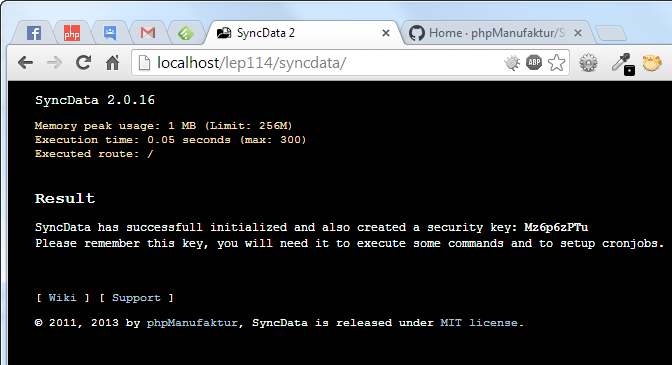
You will receive an email from SyncData2 which contains a key. Please save this key, you will need it to authorize commands your are sending to SyncData2.
Directory structure
<WB_/LEPTON_PATH>
    |-- config.php
    |-- modules
    |-- ... more subfolders of the CMS ...
    |-- syncdata
Please note: At the moment, this will only work if the CMS is installed into the root directory of your website. (See above.) If your CMS is installed into a subdirectory (something like http://www.<domain.tld>/wb/), you will have to edit the .htaccess file located in the syncdata directory.
By default, the .htaccess looks like:
<IfModule mod_rewrite.c>
    Options -MultiViews
    RewriteEngine On
    RewriteBase /syncdata
    RewriteCond %{REQUEST_FILENAME} !-f
    RewriteRule ^ bootstrap.php [L]
</IfModule>
If your CMS is installed in the subdirectory /wb change the RewriteBase to
RewriteBase /wb/syncdata
Next step: Configuration
- If you spot a typo or want to contribute an article, a how-to or a tip, please feel free to edit the Wiki directly
- If you you have any question or suggestion, please contact the phpManufaktur Support Group
© 2011, 2013 by phpManufaktur, SyncData is published under MIT license.