
Lockfile Upgrade Notes compares two npm lockfiles in your vault and creates a Markdown report. Use it to record a dependency update next to your project notes. The report lists package additions, removals and version changes by installation path. You can use the free comparison without an account.
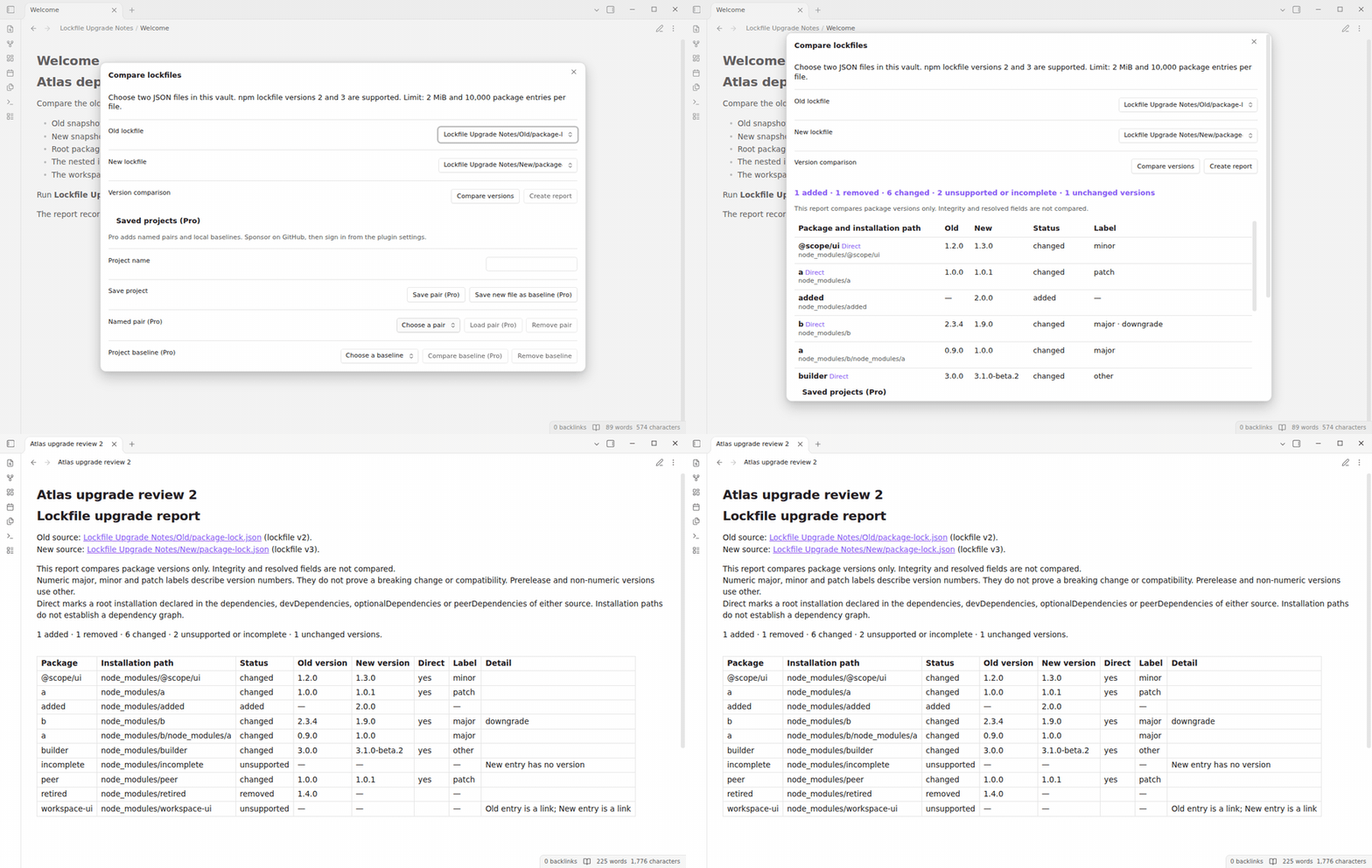
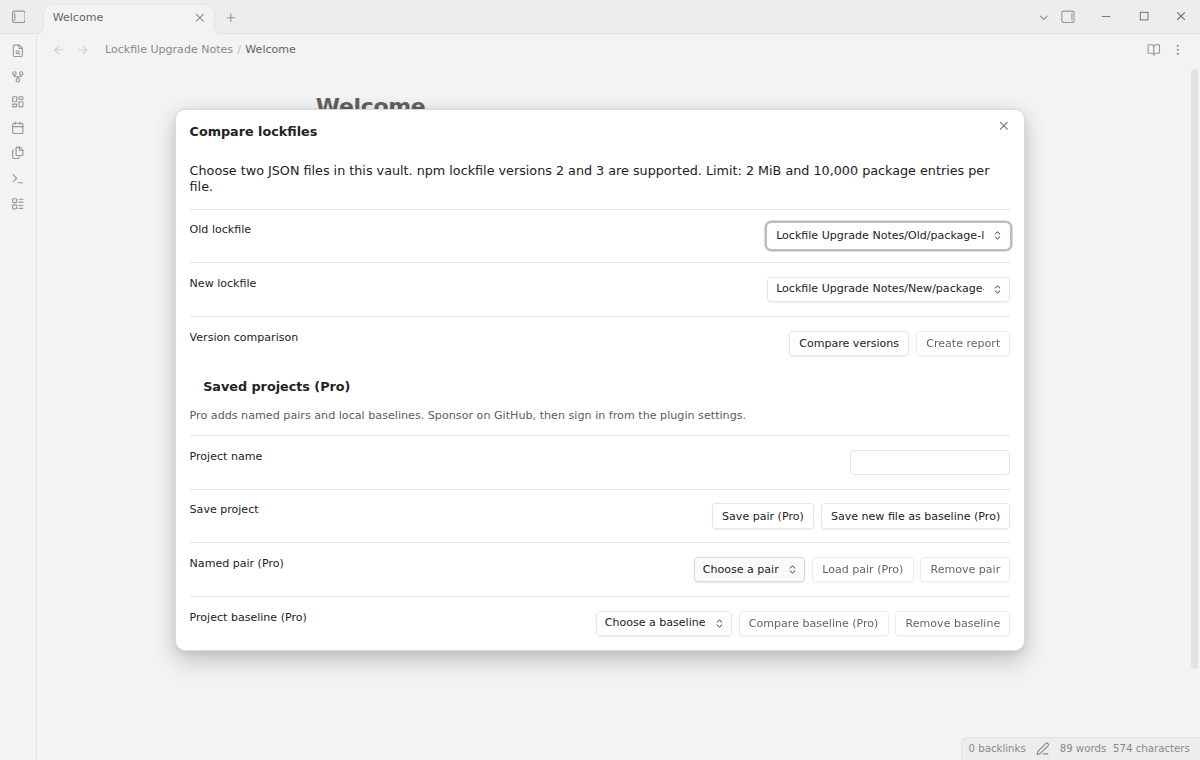
Run the comparison command and choose an old file and a new file. The selectors list JSON files in the vault, so snapshots can have different names. The parser accepts npm lockfile versions 2 and 3 with a packages object. Version 1, malformed JSON and a missing package map produce an error before report creation.
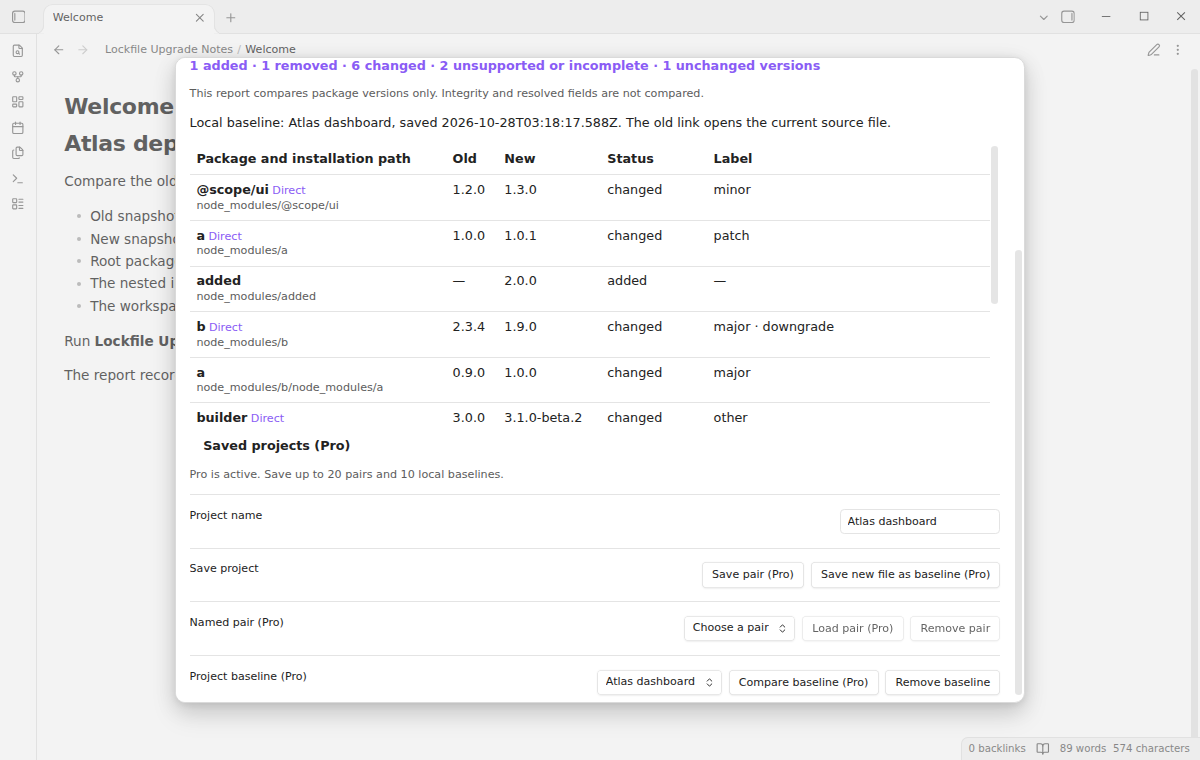
Select "Compare versions" to see added, removed and changed versions. Plain numeric versions get a major, minor or patch label from the first component that differs. For example, 1.0.0 to 1.0.1 gets patch. A numeric decrease adds a downgrade note. Prerelease, build metadata and other version strings get other. These labels do not establish compatibility or a breaking change.
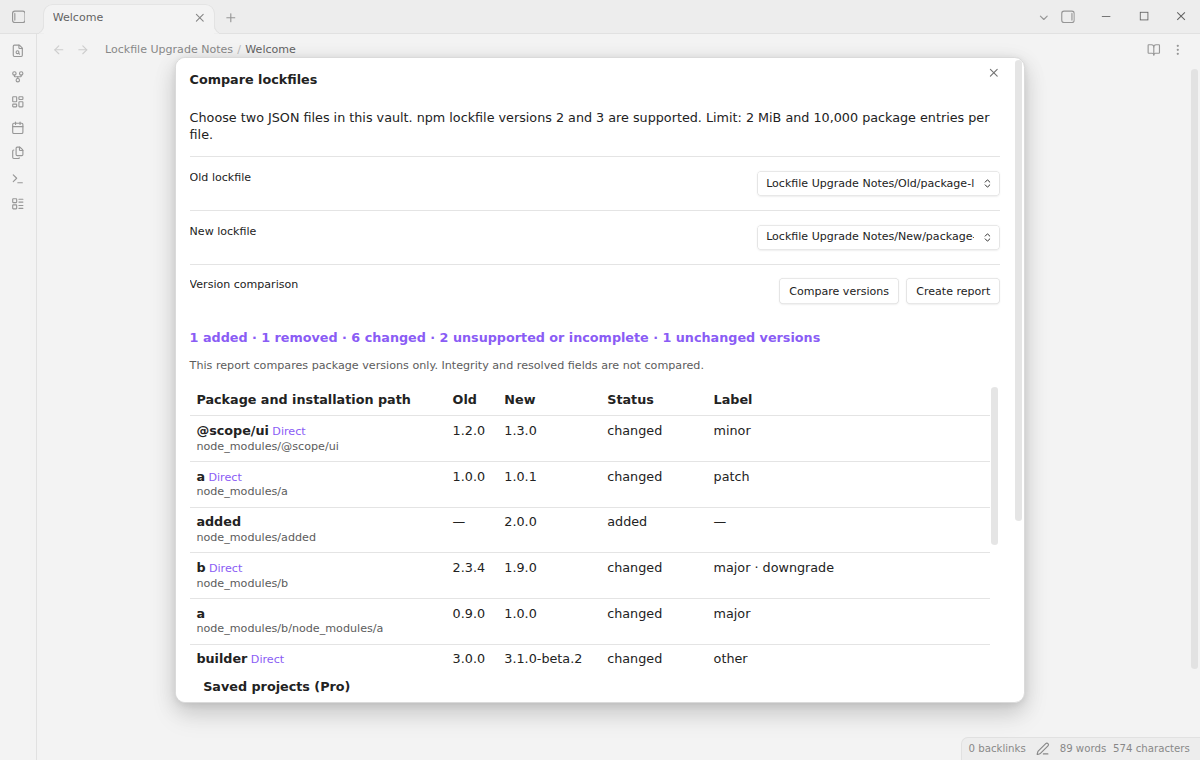
A scoped name such as @scope/ui keeps its scope. Root and nested installations have separate rows. Direct means that a root installation appears in dependencies, devDependencies, optionalDependencies or peerDependencies of either source. A nested copy cannot get that mark. The plugin does not infer a dependency graph from these paths.
Entries with link:true, missing versions or malformed entry values appear as unsupported or incomplete. They do not enter the unchanged count, even when both sources have the same incomplete entry.
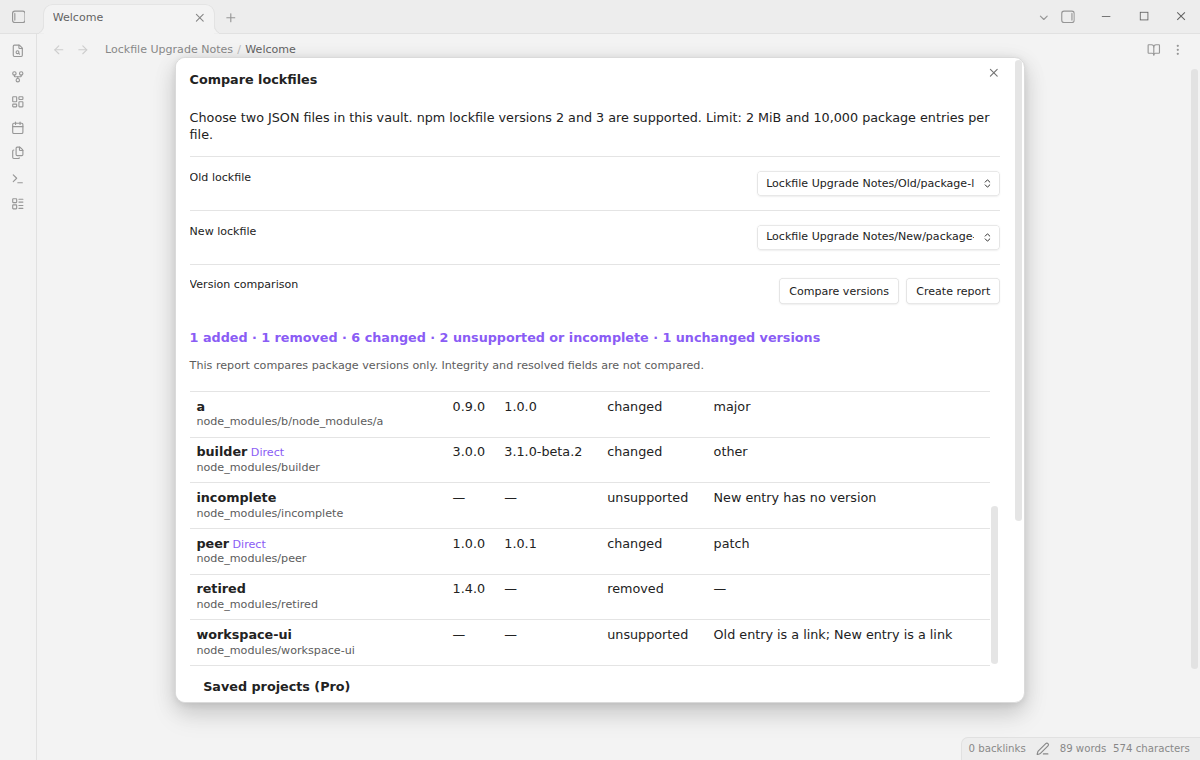
Select "Create report" after a successful comparison. The new note contains counts, version rows and links to both source files. Rows use installation path order. The preview shows up to 200 rows; the saved report includes the complete result. Reports compare versions only. Changes to integrity or resolved fields do not produce version rows.
Reports go in the vault root. If the report name exists, the plugin adds a number. Source lockfiles stay unchanged. The comparison does not run npm, use a package registry or read an external project folder.
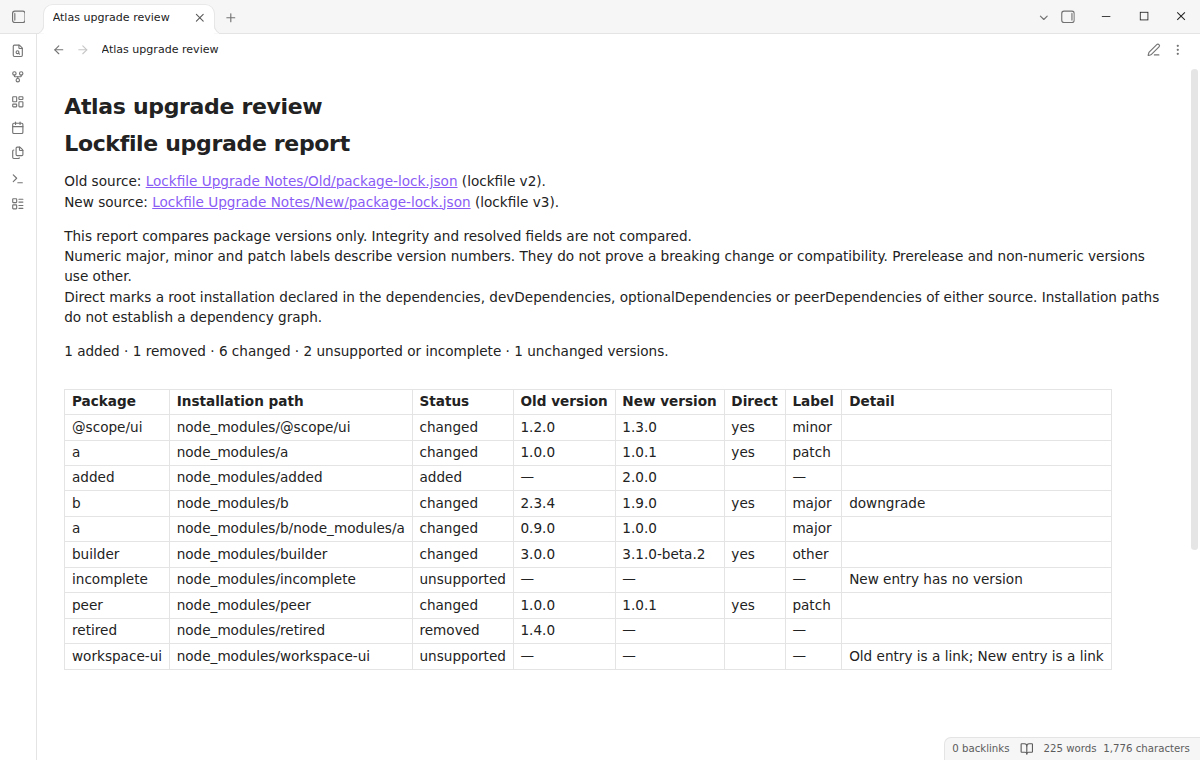
Enter a project name and select "Save pair (Pro)". Select that name under "Named pair (Pro)", then "Load pair (Pro)" to fill the old and new selectors. A pair stores paths rather than file contents. It reads the current files when you compare. Saving the same name replaces that pair. You can keep up to 20 pairs. Without Pro, the Pro buttons show a notice with a Sponsor on GitHub button and save nothing.
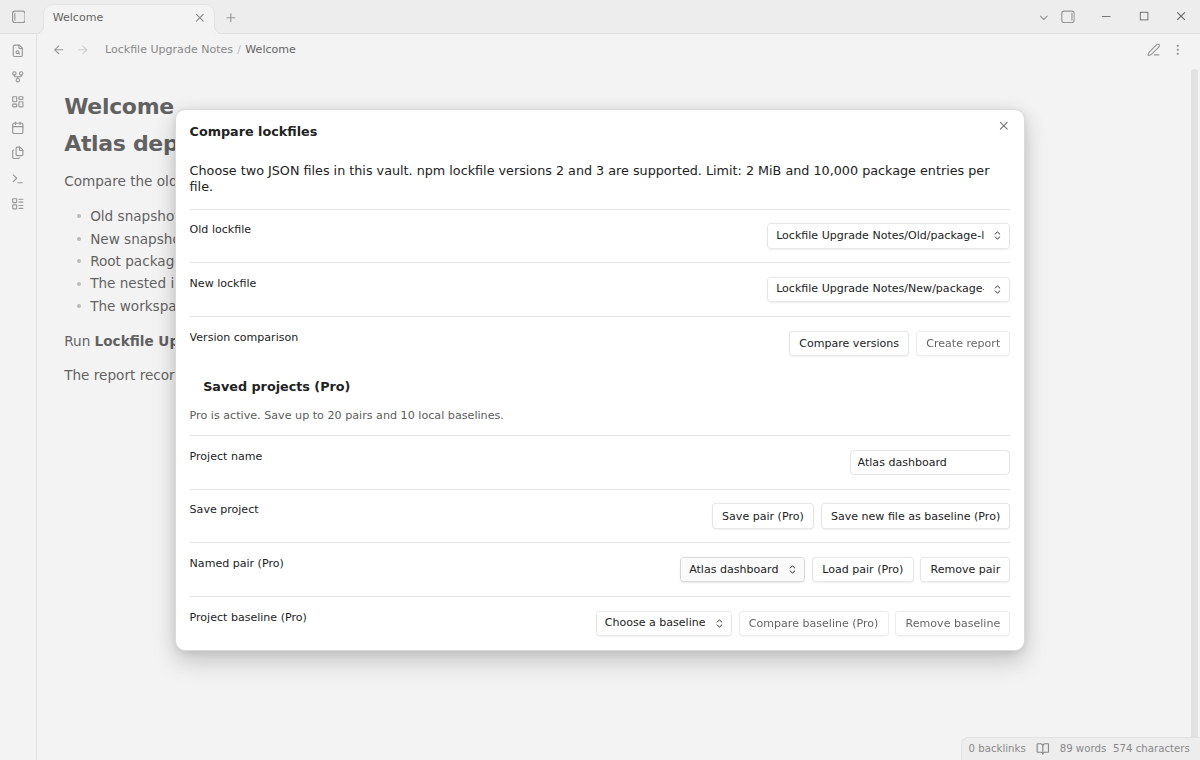
Select a new file, enter a project name and select "Save new file as baseline (Pro)". This keeps a local version snapshot for that project. Choose it under "Project baseline (Pro)" and select "Compare baseline (Pro)" to compare the snapshot with the current new file. The snapshot stays fixed when its source changes. Saving the same name replaces it. You can keep up to 10 baselines.
Baseline reports show the save time in UTC. Their old source link opens the current vault file, which can differ from the stored snapshot. Baselines keep package versions, link flags, package names and root direct names. They omit integrity values and registry URLs.
For manual installation, create <vault>/.obsidian/plugins/lockfile-upgrade-notes/ and copy main.js, manifest.json and styles.css into it. Open Community plugins in Obsidian settings and enable Lockfile Upgrade Notes. This version needs Obsidian 1.13.4 or later.
- Copy the two project snapshots into your vault, for example
Old/package-lock.jsonandNew/package-lock.json. - Open the command palette and run "Lockfile Upgrade Notes: Compare vault lockfiles".
- Choose the old and new files, then select "Compare versions".
- Review the labels and unsupported entries. Select "Create report" to save and open the note.
Inputs are limited to 2 MiB each and 10,000 package-map entries each, including the root entry. A larger input produces an error. Reduce the input outside the plugin if it exceeds those limits. The root package version is not treated as an installed dependency.
After a minor or major update, this plugin opens one What's new tab in the background. The tab and settings card suggest other NoteMods plugins and Zovo Chat and link to notemods.com for feedback (privacy). The tab sends no data. Turn the tab off in Settings.
"Report name" sets the title used for reports in the vault root. Its default is Lockfile upgrade report. Characters that would form a folder path or interfere with a note link are removed from this title.
The Pro section has "Sponsor on GitHub", "Sign in with GitHub", "Refresh" and "Sign out" controls. Saved pairs and baselines live in the plugin's data.json in the vault. Removing the plugin's saved data removes those project records. Report notes remain normal Markdown files. You can remove saved pairs and baselines from the dialog when Pro is off.
No. It compares recorded package versions. It does not check advisories, release notes, licenses or package compatibility. Use project tests and package documentation to assess an update.
A saved pair keeps its original paths. If a file moves, load the pair, choose the current files and save the pair with the same project name. A baseline can still compare its stored versions after its source disappears, but its source link then points to a missing file.
Real iOS and Android devices were not tested. Windows and Linux app sessions, external project folders, yarn and pnpm lockfiles, registry data and live paid GitHub accounts were not tested in this build. Pro tests use a local stub sponsorship response. The plugin uses public Obsidian APIs without Node or Electron imports in its runtime code.
The core features are free. Pro features need a GitHub Sponsors sponsorship of theluckystrike: $5 a month or more, or $15 once. A total payment of $15 meets the payment requirement for Pro without further payment. Sign-in and the checks below still apply. Your notes stay readable and editable with or without Pro.
GitHub handles the payment. Sponsor at https://github.com/sponsors/theluckystrike. You need no account for the free features. Pro needs the GitHub account that sponsors.
Until you select "Sign in with GitHub" in the settings, Lockfile Upgrade Notes makes no network requests. Sign in uses the GitHub device flow. Lockfile Upgrade Notes sends its public client ID and the scope read:user to https://github.com/login/device/code and shows you a code. While you enter the code at https://github.com/login/device, it asks https://github.com/login/oauth/access_token every few seconds to check the sign-in status. The scope permits profile reads only. GitHub needs this access to show the sponsorship tier. It grants no repository scope and no write access.
After sign in, Lockfile Upgrade Notes sends one query to https://api.github.com/graphql. It checks if the signed-in account sponsors theluckystrike. It asks for the tier and the total payment to theluckystrike. The plugin reuses a successful check for 7 days. Failed checks can retry after 6 hours. Select Refresh to request an earlier check. It sends no note content, file names or other vault data, and it has no telemetry.
After a successful check, Pro can work offline for up to 14 days. Sign out or a negative sponsorship answer turns Pro off. The plugin stores the GitHub token through the secret storage API of Obsidian. It does not put the token in its saved settings or its local sponsorship data. The local storage of this device keeps your GitHub login, the tier and the time of the last check. Sign out clears the token. You can also revoke the access in your GitHub settings, under Applications.
Use the repository issues for a bug report. Include the Obsidian version, the lockfile format version and a small sample that reproduces the error. Remove private package names and source URLs before you share a sample. The source is supplied under the MIT license.